Version control is a concept commonly used in software development, it is the idea that you log all changes made to each document and log their previous states. This is helpful for seeing who checked in what code, or seeing when a feature was introduced, or reverting to before a bug was in the codebase, but it is also useful to YOU, as a guy who just writes notes, for a number of reasons.
Why?
Version control systems track all of the changes made to each of your files, so that you can avoid breaking all your files by doing stupid garbage. They also tend to serve as cloud storage ( git locally is not cloud storage, but github is ) for your files, which means you can just pull them down on another device when it comes time to edit them on that other device. Using proper version control also means that you can revert changes that happened a long time ago on a specific file, without reverting the rest of your files to that long time ago date. You can also use your version control system to share your files with others, which is easier than selfhosting a notes website like I do, though it does have limitations. A great example of this is my good friend gavin’s notes on video game development - https://github.com/greysin44543/Gavin-Gamin-notes .
Need To Knows
- Git:
- git is a local version control system
- git does the actual tracking of changes to your files
- git is the tool you use to push changes to the cloud based version control system or pull changes from the cloud based version control system
- there are a few core commands / ideas you need to understand
- git commit - commits your changes, along with a required message about what those changes are, to the git repository.
- git add - adds a specified file to the commit, git itself does not automatically add all files in the folder, so you have to add whatever files you want to push the changes to yourself.
- git push - pushes the changes to the cloud after you commit them
- git pull - pulls changes from the cloud if they have been pushed from another device or user.
- a folder is marked as a repository by the existence of a .git folder within it which gives all the necessary metadata required for you to push to github ( who’s pushing ? whats their email ? whats their username ? etc )
- this means that .git folder needs to exist on all your devices
- the existence of that .git folder does NOT authenticate you with github. github requires you to authenticate all fancy, and completely seperately.
- git is NOT github. github is a web service owned by microsoft which is built around git.
- git is made by linus torvalds, which is the guy who makes linux, which is pretty rad.
- github is NOT the only option for managing your files with git in the cloud, there are a number of them, and looking through them is a blast, but you will probably want to use github for your first time.
- Github:
- the cloud location where your files are stored - e.g. https://github.com/greysin44543/Gavin-Gamin-notes
- offers a fancy webui for viewing those files
- few key terms:
- pull request - someone makes a fork ( copy ) of your stuff, and changes some stuff, and asks you if you wanna add it to your thing. like if i see a typo in one of your documents, i can fork it, fix it, and make a pull request, to see if you want to pull the changes i made onto your system.
- issue - a discussion post about a topic. Generally done whenever a person does not think the maintainer would appreciate a pull request or it would not make sense for the person to make a pull request for whatever reason ( lack of knowledge, lack of time etc ). Someone making an issue on your repository is not an obligation to do anything. You do whatever you want. You can close any issue as “wont fix” if you please. They can be helpful suggestions though. They are often used for bug reports in programming, but would probably just be to give suggestions with this usecase.
- release - usually, a compiled version of the code. the releases section is where they give you like an exe file or an msi file. you will not need to make releases of your notes, but this is knowledge you wlil need for other use of github.
- requires a seperate login, you cannot login to github via password with git, that was removed a while ago. you can generate a api token to use with git if you want, but i would recommend against it. usually i use the gh cli app to login. there is also github desktop though.
- github is NOT the only option for managing your files with git in the cloud, there are a number of them, and looking through them is a blast, but you will probably want to use github for your first time.
- please note: there isn’t any lock-in here. you arent stuck with this forever. if you wind up not liking github, you can switch to the numerous alternatives. github is an entirely proprietary service, and i would recommend looking into those alternatives ( including selfhosting your own gitea server ! ), but not right now. just use github for right now.
- Obsidian git:
- This is a plugin for obsidian which builds git integration into obsidian.
- you have to add it from the community plugins menu, and you have to have already authenticated and made a git repository out of your vault, so that it can push or pull
- you can use it to backup your stuff to git by hitting ctrl + p to open the command palette, and then typing “backup”, it should pop up.
How To!
I am entirely unwilling to boot windows to do this, and im running linux, so heres the linux version first, and then i will approximate a windows version:
linux
First, download github’s cli app. it is likely in whatever package manager your system provides. it is likely called gh. for me, because im on arch, this was just
yay -S ghwhich downloaded this aur package: https://man.archlinux.org/man/extra/github-cli/gh.1.en.
if you are on debian ( or, i would assume, any debian based distro like ubuntu ) , its gonna be
sudo apt install ghwhich will download from ( i assume ) the debian stable package repository here: https://packages.debian.org/stable/utils/gh
regardless of your distro, once you have gh installed, you are then gonna wanna run
gh auth loginwhich is gonna open a browser and give you a code to enter. then you will sign into your github account ( make one if you havent ), and it will sync over the command line. finally you want to run
gh auth setup-gitthis may not be necessary, im not sure if gh auth login does this for you, but it cant hurt to run anyway. this should set your git to use your github credentials to push.
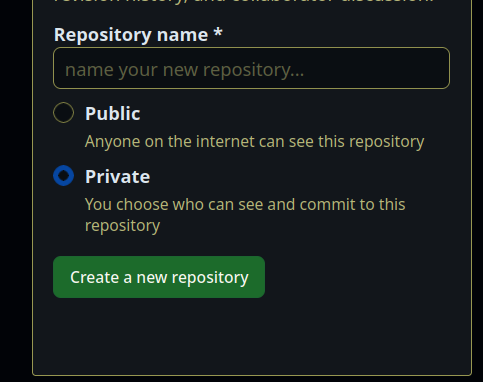
now you’re gonna want to make a new repository, which can be done by going to github, picking a name, and clicking the big green create a new repository button.
 once you have made that repository, it will give you a string of commands you are gonna need for that initial push of a folder to that repository.
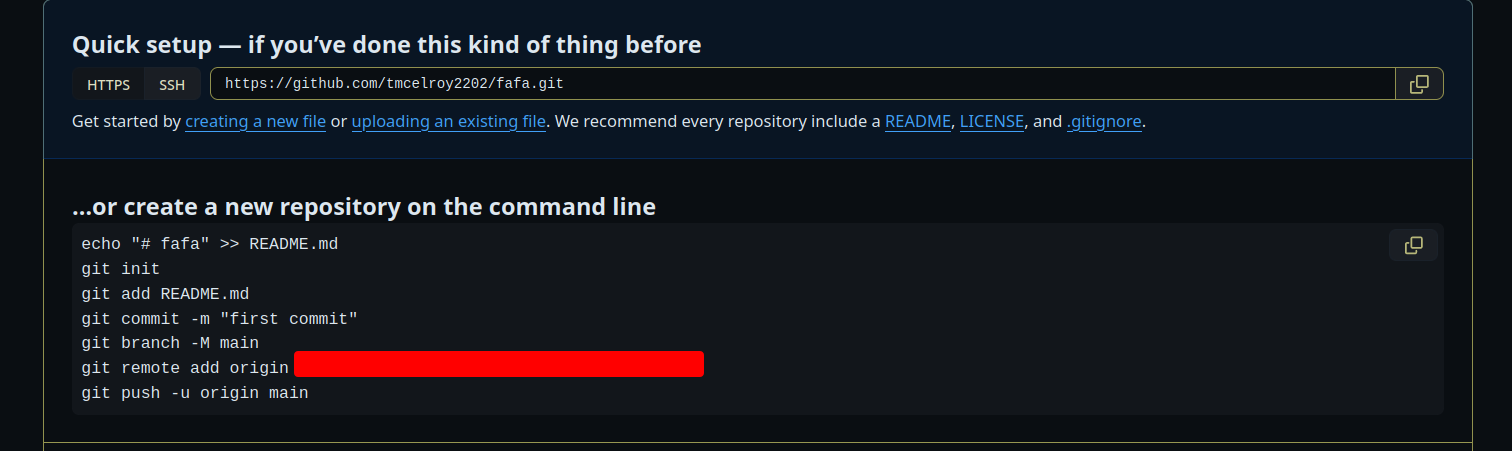 copy those into the command line, and run them, while you are in the directory of your obsidian vault. this should do your initial push.
now, go back to obsidian, and try to do a backup with obsidian git. if it doesn’t work, tell me.
obsidian git wont generate good commit messages, but really it should be fine. you dont need desrciptive commit messages for your notes. you can choose to enter your own though if you please.
Windows
Download the github cli from here: https://github.com/cli/cli/releases you likely want this one: https://github.com/cli/cli/releases/download/v2.44.1/gh_2.44.1_windows_amd64.msi that may be outdated now, but i am linking it because the latest release only has linux binaries, and if you are reading this you are new to git so you might not know how to navigate releases yet.
if you have winget, you can also just
winget install --id GitHub.cliyou are also going to need to install git. if you have winget, thats just going to be
winget install --id Git.Git -e --source wingetotherwise, go to https://git-scm.com/download/win and hit the download button for whatever you need and install it.
once you have git installed, open a terminal, and type
gh auth loginthis should prompt to open a browser / open a browser, and give you a code to enter. You will then enter that code, and sign into your github account ( make one if you dont have one ) . This will sync up with the command line client, and you should be signed into github. then run
gh auth setup-githis may not be necessary, im not sure if gh auth login does this for you, but it cant hurt to run anyway. this should set your git to use your github credentials to push.
now you’re gonna want to make a new repository, which can be done by going to github, picking a name, and clicking the big green create a new repository button.
once you have made that repository, it will give you a string of commands you are gonna need for that initial push of a folder to that repository.
you are going to need to navigate to the directory of your obsidian vault, so know where that is in your filesystem. If you do not know where your obsidian vault is, you can right click on any note and click “show in system explorer” to see where it is, then navigate back from there to find where your whole vault is. In that file explorer, click on the white space next to where it shows you at in the directory structure
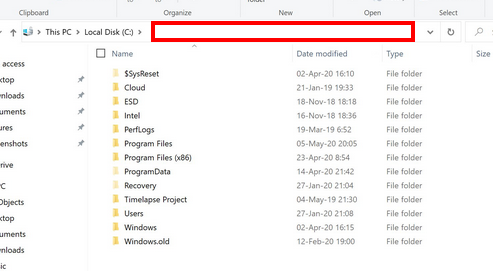 this should have you highlighting the location. you are gonna want to copy that.
open a terminal, type
this should have you highlighting the location. you are gonna want to copy that.
open a terminal, type
cd ( that location ( without parentheses ))and hit enter. so if i wanted to go to D:\Downloads\myvault it would be
cd D:\Downloads\myvaultthen type
dirand hit enter, to make sure you are in the right place. this should give a list of all files in that directory. if it all looks right,
copy those ^^^ commands it gave you earlier into the command line, and run them, while you are in the directory of your obsidian vault. this should do your initial push.
now, go back to obsidian, and try to do a backup with obsidian git. if it doesn’t work, tell me and ill help you.
obsidian git wont generate good commit messages, but really it should be fine. you dont need desrciptive commit messages for your notes. you can choose to enter your own though if you please.
you should be able to see your notes in github now. if you make them publicly facing please send them to me! I choose to keep the git repo for me notes private, because I use my github account for other stuff and I don’t want it linked to there, but if you make yours public I will totally read large sections of it.
Limitations of github as a way to publish notes
github should not be your way to publish notes, for a number of reasons
- the way that git does linking of images is not the same as how obsidian does linking of images. this means image embedding wont work on your obsidian documents quite right.
- this is the issue:

- this is the issue:
- github is not a nice interface for browsing notes, it is very cluttered.
- github file previews do take a little minute to update.
Advantages to making yours public
- I can make pull requests! And I will!
- I can make issues! And I will!