These devices are SUPER CHEAP (secondhand) enterprise grade access points. My goal is to use the 3 of them I got for a wifi roaming network around my house.
by super cheap I mean, you can get 1 for 12$ and 5 for around 36$.
 I find that to be absolutely absurd.
disclaimer
im not responsible for if you break your access point doing this. That should not happen, but it totally could, if you do something stupid.
They do not have a web interface though, so flashing openwrt to them requires you to buy a cisco serial cable
link to that cable : https://www.amazon.com/OIKWAN-Compatible-Opengear-Aruba%EF%BC%8CJuniper-Switches/dp/B075V1RGQK/
I do not know how to buy their DC power cable, and I do not want to, but they support PoE, so I bought a few PoE injectors on eBay and am using it that way. it is working wonderfully.
Now connect that cisco serial cable to your computer, and to the console port of the access point, and then in a linux terminal, run the following command:
sudo picocom -b 115200 /dev/ttyUSB0note: /dev/ttyUSB0 was what it was for me. it might be something different for you, especially if you have multiple devices connected.
Now connect your PoE cable to LAN 1 ( NOT LAN 2 LAN 2 WILL BREAK THINGS LATER )
It is going to prompt you for a username and password the username is admin the password is new2day if those do not work, then you need to reset the access point, using the reset button near the cables. I use a bent paperclip for this.
Once you are signed in, you should be at a shell which has the prompt
Boot (PRI)->if that is NOT the prompt, then you just need to wait for a while, or reboot the access point. You also should try booting the access point AFTER connecting the console cable, as I have seen that when the cable is connected affects which shell you get.
Now you need to run a TFTP server on your computer, to serve up that firmware so we can flash it.
on linux thats:
# create a temporary directory and enter it:
cd $(mktemp -d)

# dowload the initramfs:
curl https://downloads.openwrt.org/snapshots/targets/mpc85xx/p1020/openwrt-mpc85xx-p1020-extreme-networks_ws-ap3825i-initramfs-kernel.bin -o ws-ap3825i-initramfs.bin

cp ws-ap3825i-initramfs.bin initramfs.bin

# start a tftp server which serves from the current location
sudo dnsmasq -d --enable-tftp --port 0 --tftp-root $(pwd)
Now, in order to communicate with that server, you must run these commands on the boot PRI shell, INDIVIDUALLY. YOU CANNOT COPY THEM ALL IN AT THE SAME TIME.
important:
the first ip address is the current IP of the access point itself. The second is the IP of the tftp server. YOU MUST CHANGE THESE.
you must be connected to LAN 1 in order to successfully get an internet connection after. If you are on LAN 2 this will not work. I do not know why. i think it’s kinda silly, but it’s the truth.
in order for you to have an IP address for the access point, it has to have booted normally atleast once. so do that if you havent already.
setenv ramboot_openwrt "setenv ipaddr 192.168.2.242; setenv serverip 192.168.2.208; tftpboot 0x2000000 ws-ap3825i-initramfs.bin; interrupts off; bootm start 0x2000000; bootm loados; fdt resize; fdt boardsetup; fdt resize; fdt boardsetup; fdt chosen; fdt resize; fdt chosen; bootm prep; bootm go;"

setenv boot_openwrt "cp.b 0xEC000000 0x2000000 0x2000000; interrupts off; bootm start 0x2000000; bootm loados; fdt resize; fdt boardsetup; fdt resize; fdt boardsetup; fdt chosen; fdt resize; fdt chosen; bootm prep; bootm go;"

setenv bootcmd "run boot_openwrt";

saveenv

run ramboot_openwrt
if all went well, you should now be in openwrt! ( you will have to hit enter to get a shell )
if at any point, your system breaks, just repeat the commands above in the boot-pri shell.
from here, you are gonna wanna do a system upgrade
I do this via wget
I go to the openwrt wiki page for the device https://openwrt.org/toh/extreme_networks/ws-ap3825i
and i scroll down to installation
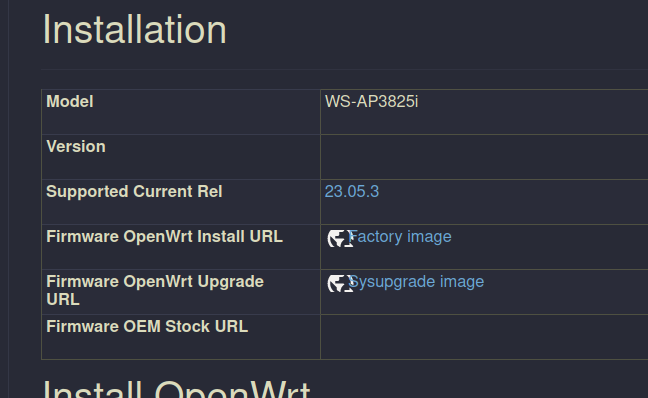
i right click on the sysupgrade image link and i copy link. You should do this yourself because there may be a newer version available than the version at time of writing. currently thats https://downloads.openwrt.org/releases/23.05.3/targets/mpc85xx/p1020/openwrt-23.05.3-mpc85xx-p1020-extreme-networks_ws-ap3825i-squashfs-sysupgrade.bin
then in the openwrt shell i execute
wget https://downloads.openwrt.org/releases/23.05.3/targets/mpc85xx/p1020/openwrt-23.05.3-mpc85xx-p1020-extreme-networks_ws-ap3825i-squashfs-sysupgrade.bin -O sysupgrade.binand then
sysupgrade -n sysupgrade.binyou should now be in a updated and mostly functional copy of openwrt!
couple small problems though - primarily that it has no wifi network right now.
all config files are in /etc/config on openwrt.
im now going to show each one
/etc/config/dhcp
config dnsmasq
	option domainneeded '1'
	option localise_queries '1'
	option rebind_protection '1'
	option rebind_localhost '1'
	option cachesize '1000'
	option readethers '1'
	option leasefile '/tmp/dhcp.leases'
	option resolvfile '/tmp/resolv.conf.d/resolv.conf.auto'
	option localservice '1'
	option ednspacket_max '1232'
	option allservers '1'

config dhcp 'lan'
	option interface 'lan'
	option start '100'
	option limit '150'
	option leasetime '12h'
	option dhcpv4 'server'
	option ignore '1'

config dhcp 'wan'
	option interface 'wan'

config odhcpd 'odhcpd'
	option maindhcp '0'
	option leasefile '/tmp/hosts/odhcpd'
	option leasetrigger '/usr/sbin/odhcpd-update'
	option loglevel '4'
/etc/config/firewall
config defaults
	option input 'ACCEPT'
	option output 'ACCEPT'
	option forward 'ACCEPT'
	option synflood_protect '1'

config zone
	option name 'lan'
	list network 'lan'
	option input 'ACCEPT'
	option output 'ACCEPT'
	option forward 'ACCEPT'
	option masq '1'

config zone
	option name 'wan'
	list network 'wan'
	list network 'wan6'
	option input 'ACCEPT'
	option output 'ACCEPT'
	option forward 'ACCEPT'
	option masq '1'
	option mtu_fix '1'

config forwarding
	option src 'lan'
	option dest 'wan'

config rule
	option name 'Allow-DHCP-Renew'
	option src 'wan'
	option proto 'udp'
	option dest_port '68'
	option target 'ACCEPT'
	option family 'ipv4'

config rule
	option name 'Allow-Ping'
	option src 'wan'
	option proto 'icmp'
	option icmp_type 'echo-request'
	option family 'ipv4'
	option target 'ACCEPT'

config rule
	option name 'Allow-IGMP'
	option src 'wan'
	option proto 'igmp'
	option family 'ipv4'
	option target 'ACCEPT'

config rule
	option name 'Allow-DHCPv6'
	option src 'wan'
	option proto 'udp'
	option dest_port '546'
	option family 'ipv6'
	option target 'ACCEPT'

config rule
	option name 'Allow-MLD'
	option src 'wan'
	option proto 'icmp'
	option src_ip 'fe80::/10'
	list icmp_type '130/0'
	list icmp_type '131/0'
	list icmp_type '132/0'
	list icmp_type '143/0'
	option family 'ipv6'
	option target 'ACCEPT'

config rule
	option name 'Allow-ICMPv6-Input'
	option src 'wan'
	option proto 'icmp'
	list icmp_type 'echo-request'
	list icmp_type 'echo-reply'
	list icmp_type 'destination-unreachable'
	list icmp_type 'packet-too-big'
	list icmp_type 'time-exceeded'
	list icmp_type 'bad-header'
	list icmp_type 'unknown-header-type'
	list icmp_type 'router-solicitation'
	list icmp_type 'neighbour-solicitation'
	list icmp_type 'router-advertisement'
	list icmp_type 'neighbour-advertisement'
	option limit '1000/sec'
	option family 'ipv6'
	option target 'ACCEPT'

config rule
	option name 'Allow-ICMPv6-Forward'
	option src 'wan'
	option dest '*'
	option proto 'icmp'
	list icmp_type 'echo-request'
	list icmp_type 'echo-reply'
	list icmp_type 'destination-unreachable'
	list icmp_type 'packet-too-big'
	list icmp_type 'time-exceeded'
	list icmp_type 'bad-header'
	list icmp_type 'unknown-header-type'
	option limit '1000/sec'
	option family 'ipv6'
	option target 'ACCEPT'

config rule
	option name 'Allow-IPSec-ESP'
	option src 'wan'
	option dest 'lan'
	option proto 'esp'
	option target 'ACCEPT'

config rule
	option name 'Allow-ISAKMP'
	option src 'wan'
	option dest 'lan'
	option dest_port '500'
	option proto 'udp'
	option target 'ACCEPT'

config forwarding
	option src 'wan'
	option dest 'lan'

config rule
	option name 'Allow-Admin'
	option enabled 'true'
	option src 'wan'
	option proto 'tcp'
	option dest_port '22 80 443'
	option target 'ACCEPT'
/etc/config/network
with this one be aware you must set the IP you want it to have and the gateway you want it to have.
your gateway is your upstream router ip.
config interface 'loopback'
	option device 'lo'
	option proto 'static'
	option ipaddr '127.0.0.1'
	option netmask '255.0.0.0'

config globals 'globals'
	option ula_prefix 'fd28:8846:f519::/48'

config device
	option name 'br-lan'
	option type 'bridge'
	list ports 'eth1'

config interface 'lan'
	option proto 'static'
	option ipaddr '192.168.2.2'
	option netmask '255.255.255.0'
	option gateway '192.168.2.1'
	option device 'br-lan'
	list dns '192.168.2.1'

config interface 'wan'
	option device 'eth1'
	option proto 'dhcp'

config interface 'wan6'
	option device 'eth1'
	option proto 'dhcpv6'
	option reqaddress 'try'
	option reqprefix 'auto'
/etc/config/system
config system
	option hostname 'OpenWrt'
	option timezone 'UTC'
	option ttylogin '0'
	option log_size '64'
	option urandom_seed '0'

config timeserver 'ntp'
	option enable_server '0'
	list server '0.openwrt.pool.ntp.org'
	list server '1.openwrt.pool.ntp.org'
	list server '2.openwrt.pool.ntp.org'
	list server '3.openwrt.pool.ntp.org'

config led 'led_lan1'
	option name 'LAN1'
	option sysfs 'green:lan1'
	option trigger 'netdev'
	option mode 'link tx rx'
	option dev 'eth1'

config led 'led_lan2'
	option name 'LAN2'
	option sysfs 'green:lan2'
	option trigger 'netdev'
	option mode 'link tx rx'
	option dev 'eth1'
/etc/config/ucitrack
config network
	option init network
	list affects dhcp

config wireless
	list affects network

config firewall
	option init firewall
	list affects luci-splash
	list affects qos
	list affects miniupnpd

config olsr
	option init olsrd

config dhcp
	option init dnsmasq
	list affects odhcpd

config odhcpd
	option init odhcpd

config dropbear
	option init dropbear

config httpd
	option init httpd

config fstab
	option exec '/sbin/block mount'

config qos
	option init qos

config system
	option init led
	option exec '/etc/init.d/log reload'
	list affects luci_statistics
	list affects dhcp

config luci_splash
	option init luci_splash

config upnpd
	option init miniupnpd

config ntpclient
	option init ntpclient

config samba
	option init samba

config tinyproxy
	option init tinyproxy
/etc/config/wireless
config wifi-device 'radio0'
	option type 'mac80211'
	option path 'ffe0a000.pcie/pcia000:02/a000:02:00.0/a000:03:00.0'
	option channel '36'
	option band '5g'
	option htmode 'VHT80'
	option disabled '0'

config wifi-iface 'default_radio0'
	option device 'radio0'
	option network 'lan'
	option mode 'ap'
	option ssid 'OpenWrt'
	option encryption 'none'

config wifi-device 'radio1'
	option type 'mac80211'
	option path 'ffe09000.pcie/pci9000:00/9000:00:00.0/9000:01:00.0'
	option channel '36'
	option band '5g'
	option htmode 'HT20'
	option disabled '0'

config wifi-iface 'default_radio1'
	option device 'radio1'
	option network 'lan'
	option mode 'ap'
	option ssid 'OpenWrt'
	option encryption 'none'
/etc/config/dropbear
config dropbear
	option PasswordAuth 'on'
	option RootPasswordAuth 'on'
	option Port         '22'
#	option BannerFile   '/etc/banner'
/etc/config/luci
config core 'main'
	option lang 'auto'
	option mediaurlbase '/luci-static/bootstrap'
	option resourcebase '/luci-static/resources'
	option ubuspath '/ubus/'

config extern 'flash_keep'
	option uci '/etc/config/'
	option dropbear '/etc/dropbear/'
	option openvpn '/etc/openvpn/'
	option passwd '/etc/passwd'
	option opkg '/etc/opkg.conf'
	option firewall '/etc/firewall.user'
	option uploads '/lib/uci/upload/'

config internal 'languages'

config internal 'sauth'
	option sessionpath '/tmp/luci-sessions'
	option sessiontime '3600'

config internal 'ccache'
	option enable '1'

config internal 'themes'
	option Bootstrap '/luci-static/bootstrap'
	option BootstrapDark '/luci-static/bootstrap-dark'
	option BootstrapLight '/luci-static/bootstrap-light'

config internal 'apply'
	option rollback '90'
	option holdoff '4'
	option timeout '5'
	option display '1.5'

config internal 'diag'
	option dns 'openwrt.org'
	option ping 'openwrt.org'
	option route 'openwrt.org'
/etc/config/rpcd
config rpcd
	option socket /var/run/ubus/ubus.sock
	option timeout 30

config login
	option username 'root'
	option password '$p$root'
	list read '*'
	list write '*'
/etc/config/ubootenv
config ubootenv
	option dev '/dev/mtdblock8'
	option offset '0x0'
	option envsize '0x10000'
	option secsize '0x20000'

config ubootenv
	option dev '/dev/mtdblock7'
	option offset '0x0'
	option envsize '0x10000'
	option secsize '0x20000'
/etc/config/uhttpd
config uhttpd 'main'
	list listen_http '0.0.0.0:80'
	list listen_http '[::]:80'
	list listen_https '0.0.0.0:443'
	list listen_https '[::]:443'
	option redirect_https '0'
	option home '/www'
	option rfc1918_filter '1'
	option max_requests '3'
	option max_connections '100'
	option cert '/etc/uhttpd.crt'
	option key '/etc/uhttpd.key'
	option cgi_prefix '/cgi-bin'
	list lua_prefix '/cgi-bin/luci=/usr/lib/lua/luci/sgi/uhttpd.lua'
	option script_timeout '60'
	option network_timeout '30'
	option http_keepalive '20'
	option tcp_keepalive '1'
	option ubus_prefix '/ubus'

config cert 'defaults'
	option days '730'
	option key_type 'ec'
	option bits '2048'
	option ec_curve 'P-256'
	option country 'ZZ'
	option state 'Somewhere'
	option location 'Unknown'
	option commonname 'OpenWrt'
once you make all those files say all those things, reboot. wifi should just work immediately.
Great! so now we have a working openwrt access point!
its an open network though, which isnt great. Let’s fix that.
on each access point, on luci, go to network → wireless where you see your SSIDs, click Edit
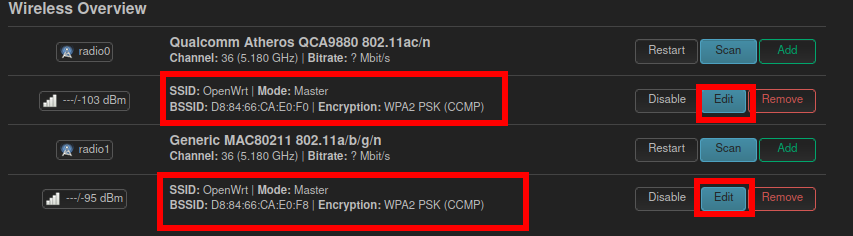
under interface configuration go to the wireless security tab
set encryption to WPA2-PSK
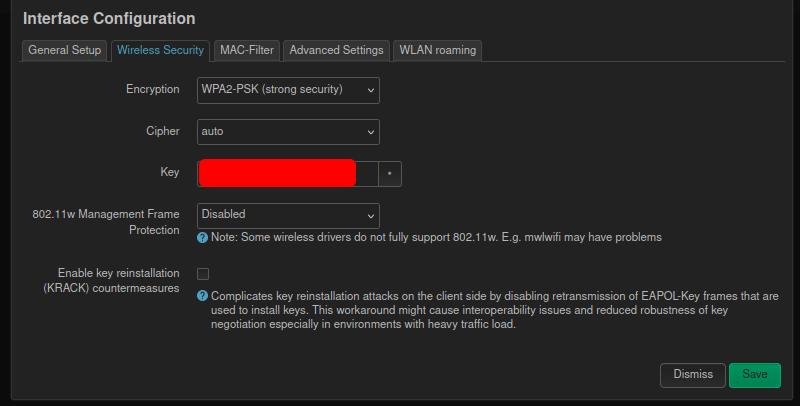
set Key to your password. Key just means password. dont worry about any of the other options. Save. Do this on each SSID on each access point.
Useful resources for this topic:
https://forum.darmstadt.freifunk.net/t/flashing-of-the-extreme-networks-ws-ap3825i/923
https://openwrt.org/toh/extreme_networks/ws-ap3825i
https://openwrt.org/docs/guide-user/network/wifi/wifiextenders/bridgedap